Assembly Items
Assembly Items are displayed on the right-hand side of the Assemblies window. They are the actual Items that are used to form the Assembly.
 See example: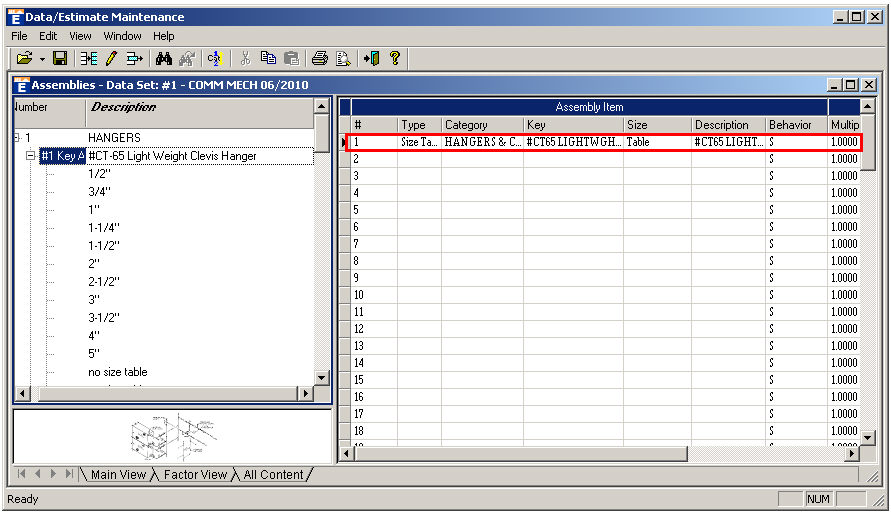
When you Edit an Assembly Item, the following window appears:
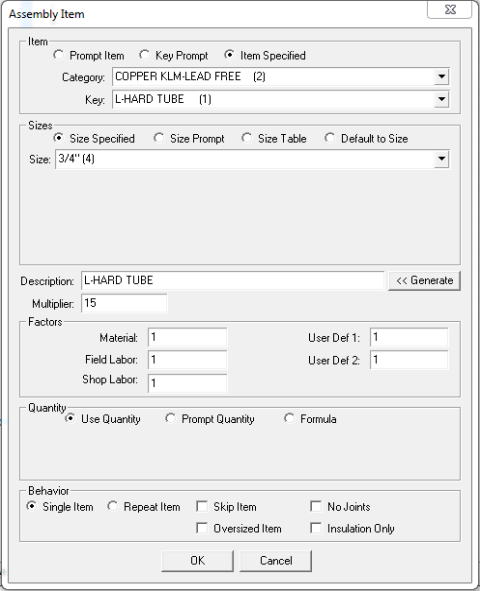
Item: This window section is used to define what kind of Item is being used.
Prompt Item: This type of Item will prompt you for all information (category, key and size/item)about it when you take off the assembly in takeoff.
Key Prompt: Select this option to preset the category/specials in the assembly and then be prompted during takeoff for only the key and size/item.
Item Specified: Allows you to associate a specific Databook Item with the Assembly, which you locate using the available Category and Key drop-down menus.
Sizes: This window section is only activated if Item Specified is selected above. The size choices available are also dependent on which specific Databook Item is selected. Below are all of the possible selections:
Size Specified: Allows you to select a size from the available drop-down menu.
Size Prompt: Asks for the size whenever you takeoff the Assembly Item.
Size Table: This does not specify a size immediately. The size is specified in one ore more of the size tables of the Assembly.
Default
to Size: Items set to this option will attempt to use the size settings
configured in Takeoff. If the item can not retrieve a needed
size, it will prompt you to enter a value.
Description:
A description of the item. You can use Generate
to create one automatically.
Multiplier:
Multiplies the quantity of the Assembly Item by the value entered here.
Factors: Allows
you to edit the following factors: Material,
Field, Shop,
UserDef1, andUserDef2.
Quantity: You can edit how the Assembly Item handles quantity:
Use Quantity: Uses the base quantity of the Assembly.
Prompt Quantity: Prompts you for the quantity of this Assembly Item when it is used in Takeoff.
Formula:
Processes the specified formula to determine the quantity. The formula
used is selected via the available drop-down menu.
Behavior: This window section controls the behavioral conditions of the Assembly Item:
Single Item: This item is processed only once.
Repeat Item: This item can be processed multiple times, or that the item will be repeated during processing.
Skip Item: Displays a prompt whether or not to include this item.
Oversized Item: Used for Hangers only, this option will cause the Item to be oversized in order to accommodate insulation.
No Joints: This option will mark the Item as not using Joints.
Insulation Only: Items with this behavior will only be taken off if insulation is present.