Applying One or More Design Specifications
-
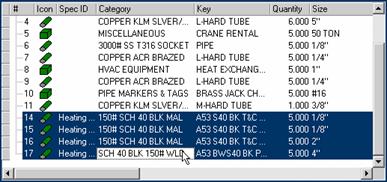
Select the items. Figure 1 is an example showing item sequence numbers 14 through 17 which were taken off without a Design Specification active (there is no specification indicated in the Spec Id field).
NOTE – If the Spec Id field does not show in your TFM view, insert a column and label it.
Figure 1
 \
\
-
Add the Design Spec panel to your Takeoff by adjusting your screen views (see Takeoff Screen Views for more information). These are the Design Specifications setup and activated for the selected estimate. Next, select
 or Edit > Design Specs On.
-
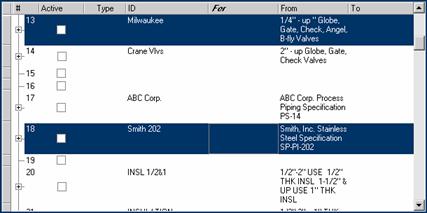
Select the Design Specifications you want to apply. The scroll bar to the right of the display can be used to review the file. Figure 2 is an example of two Design Specifications selected (in this example spec 13 was selected first, then Ctrl-click with a mouse was used to select spec 18 as well).
Figure 2
-
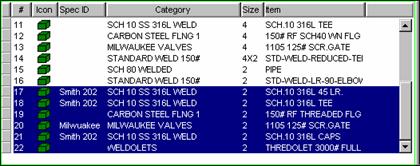
Once you make Design Specification selections, notice that Specs Selected indicates the number of specs you have selected. Also, the Apply button is active. As you select the specs you want, they will be applied to your selected items (Figure 3).
Figure 3
The Original
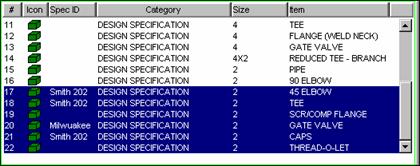
Takeoff command (View
menu) or  toggles between the Takeoff items with their original material, before
Specifications were applied (Figure 4).
toggles between the Takeoff items with their original material, before
Specifications were applied (Figure 4).
Figure 4
If you realize a mistake in the application of a Design
Specification, the Undo
function (Edit
> Undo or  can be used immediately
following the procedure.
can be used immediately
following the procedure.
NOTE – The "None" Design Specification removes any design specifications applied to selected Item(s).