Colors in SFM
Often, when working with a Summary file, you may notice that items are shown in a color other than black. Below are the possible colors and explanations of why they occur. These are the default system settings, and can be edited using the File > Preferences > Miscellaneous Options > Edit Colors... option.
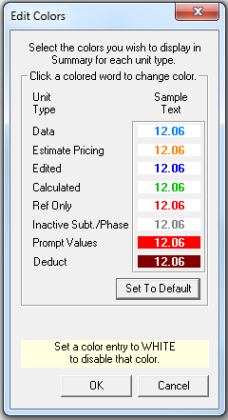
To change a color, click on the sample text of the Unit Type you wish to change to open the color pallet window. This window has several standard color choices for selection. Click the color you want the unit type to display as, and press OK. The sample text in the first window updates to reflect your choice.
If you wish to undo all of your color changes, select Set to Default to reset all of the color assignments to how they were when you installed Estimation Desktop.
To create a custom color, selectDefine Custom Colorsand the window expands to reveal additional options that allow you to create a specific color.
Click on an empty (white) custom color block. Then, use the mouse to click and drag the marker to the desired shade. Next, move the side “<” downwards; this moves the contrast of the color from pure white to a progressively darker shade of the color indicated to the left. You can also edit the color’s numerical settings directly. Select and type in the desired values. The final color result displays in the Color|Solid box. After creating your color, click Add to Custom Colors. Your color is saved and displays in the selected custom color box for future use.